
Creating a Class
Whilst we call this ‘creating a class’, you can create any type of service that you’d like to make bookable
Written by Lee Wilson
updated over a week ago
Within uniquefit you can create as many classes as you’d like. While we refer to it as “creating a class,” this feature is flexible—you can use it for anything from a Spinning Class, Martial Arts Session, or Consultation Appointment, to a Massage Therapy session or even Gym Access. Your “classes” can be whatever suits your business needs. 😀
How to Create a Class
To create a class, navigate to the ‘Class Schedule’ page and scroll down to the ‘Create Class’ section.
If you haven’t completed all the required setup steps, the system will guide you through each one before you can proceed.
Fill out the form fields as follows:
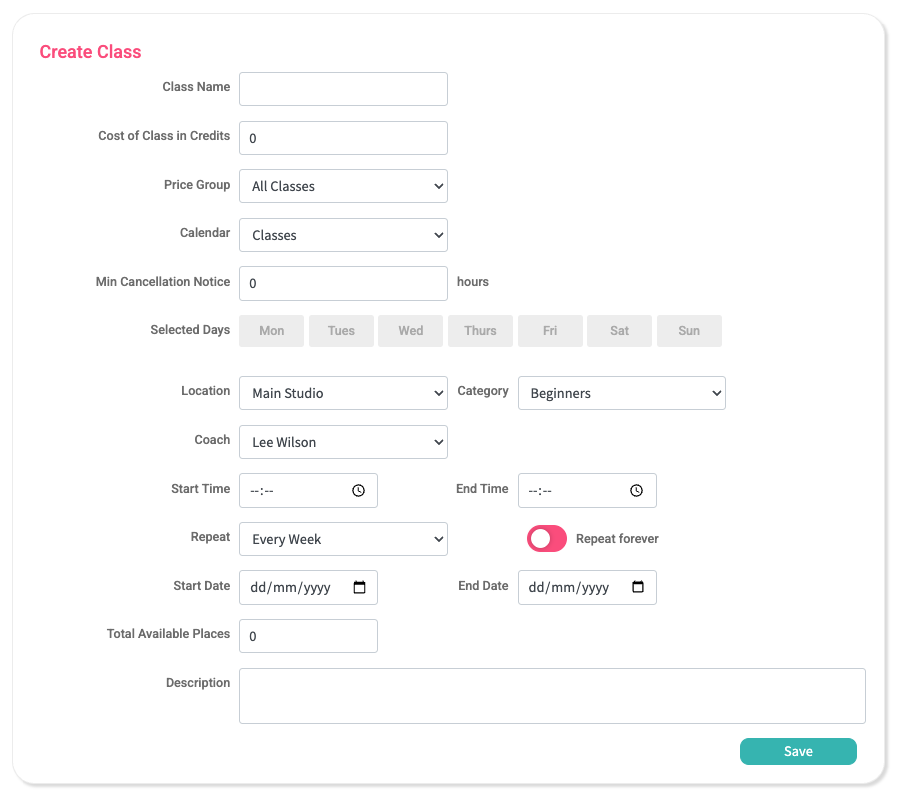
| Class Name | Enter the name of your class, e.g., “Kids Jiu Jitsu”. |
|---|---|
| Cost of Class in Credits | Typically set this to 1, so that one credit equals one class (view the Credits Packages page for information on pricing your credits) |
| Price Group | Select a Price Group you’ve created. For example, for Kids Jiu Jitsu, you might have chosen to create a Price Group called Kids Classes. |
| Calendar | Choose the calendar you want this class to appear in—e.g., Kids Classes or a general All Classes calendar. |
| Min Cancellation Notice | Set the minimum cancellation notice (e.g., 2 hours, 24 hours). This can vary per class and should align with your Cancellation Policy. |
| Select Days | Select the days your class will be available.
For example, if your Kids Jiu Jitsu class runs on Mondays and Wednesdays from 4–5pm, select those days and enter the time (see Start and End Time below). Note: If you run the same class at different times, you’ll need to create a separate class for each time slot. |
| Location | Assign a location (e.g., Studio 1, Gym, etc.) from your Locations list. |
| Category | Select the category (e.g., Kids, Beginner, etc.) to help clients understand who the class is for. |
| Coach | Assign a coach (created in the ‘Staff‘ page) who will lead the class. |
| Start and End Time | Set your class start and end time. |
| Repeat | Choose if this class repeats weekly or every other week. |
| Repeat Forever | Enable ‘Repeat Forever’ if the class is ongoing. Disable it if it’s temporary—like a summer course—and set specific start and end dates. |
| Start and End Date | Only visible if Repeat Forever is disabled. Example: A class that only runs during August would have a start date of 1st August and an end date of 31st August. |
| Total Available Places | Set the maximum number of clients who can book. Once the limit is reached, no more bookings can be made unless someone cancels—at which point the space is reopened automatically.You can also enable Waiting Lists for high-demand classes. When enabled clients on a waiting list will be automatically notified via a push notification should a space become available. |
| Description | (Optional) Add a brief description to give clients more information about the class. |
Save Your Class
Click ‘Save’ to add your class to the Available Classes list.
