Credit Packages
Creating Price Groups and Credit Packages
Written by Lee Wilson
updated over a week ago
Booking Classes with Credit Packages
To enable class bookings, you must create at least one Credit Package, even if you only plan to use Memberships to manage your classes. You can hide the credit package from clients if you don’t want it publicly available.
There are two key components to a Credit Package:
-
The Credit Package itself
-
Price Groups
Price Groups
Price Groups define what a credit can be used for and its value. You can create as many Price Groups as you need.
For example:
-
A Price Group named “Classes” can be used for booking any of your class sessions.
-
A Price Group named “Appointments” can be used for one-on-one appointments.
You can assign different pricing to each Price Group based on the session type.
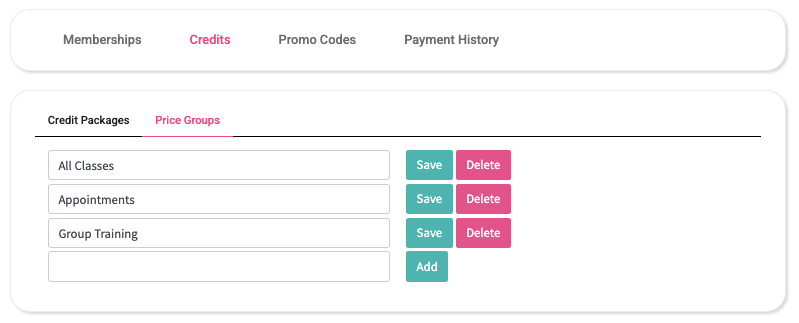
To create a Price Group:
-
Navigate to the ‘Memberships’ page.
-
Click the ‘Credits’ tab.
-
Select ‘Price Groups’.
-
Enter the name of your Price Group and click ‘Save’.
-
To add more, repeat the process.
Credit Packages
Once you’ve created your Price Groups, you can now set up your Credit Packages.
Credit Packages are what clients purchase to book sessions—whether for classes, appointments, or other services. Each package includes a number of credits, and each credit allows one booking. Credit Packages are also used for issuing refunds when a booking is canceled in accordance with your Cancellation Policy.
You can create as many Credit Packages as needed.
To create a Credit Package:
-
Go to the ‘Memberships’ page.
-
Click on the ‘Credits’ tab.
-
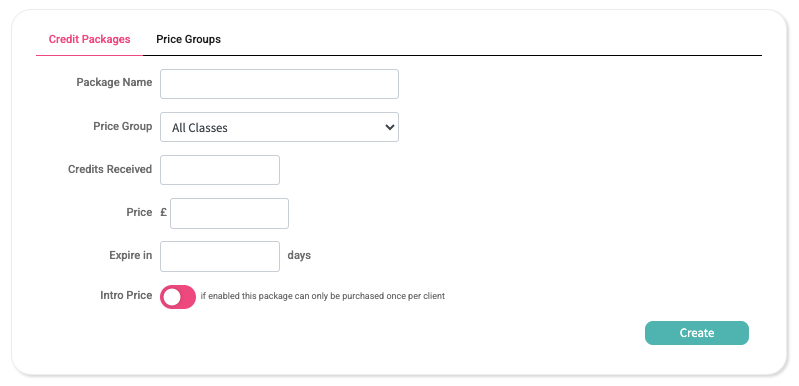
Select ‘Credit Packages’ and complete the fields:
-
Package Name: This is the name shown to clients in the “Memberships & Credits” section of the UniQueFit app or your custom-branded app (found under My Profile via the three-dot menu at the bottom of the home screen).
-
Price Group: Choose one of the Price Groups you’ve created.
-
Credits Received: Enter how many credits the client will receive.
-
Price: Enter the total price of the package.
-
Expire In: Set the number of days the credits will remain valid after purchase. Clients must use the credits within this period, but can book sessions scheduled beyond it, as long as they book before expiration.
-
Intro Price (optional): When enabled, this package can only be purchased once per client—ideal for special offers or trial packs.
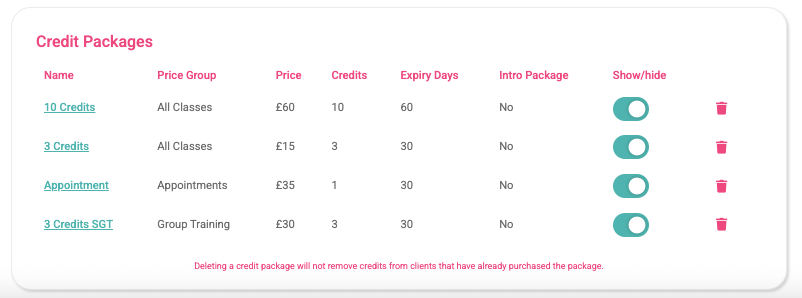
After saving, your Credit Packages will appear in the list below. Each listing shows key details, with options to:
-
Hide/Show the package in your app
-
Delete the package (this won’t affect clients who have already purchased it—it only removes it from future availability)