
Settings
Configure your System fundamentals.
Written by Lee Wilson
updated over a week ago
Before you get started on anything else its important to get the fundamentals right. The ‘Settings’ page is where you not only add your contact information, but its where you add your ‘Business Name’, that is shown within your app, its where you add your logo for your registration page, and its where you create your core locations.
It’s also important to set your Global Settings.
General Settings
This is where you add your contact information, change your login details, and upload your logo. The logo you add will show up on your sign-up page, so new clients can see who you are.
Your business name will show at the top of your app’s home screen.
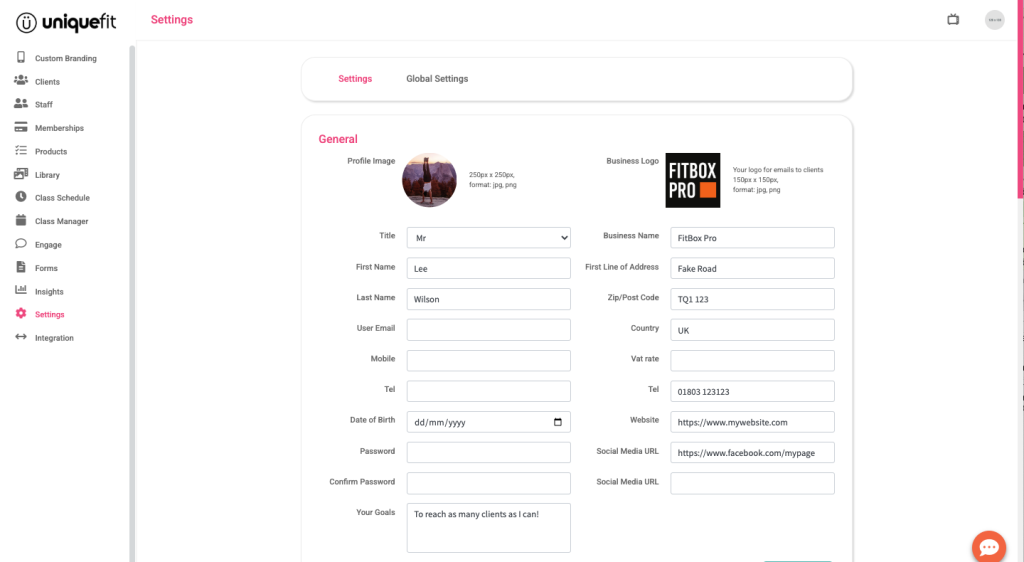
The login details in the “General” settings are for your admin account ONLY and not used to access the uniquefit coaching app.
To manage class check-ins, coach and chat with your clients using the uniquefit coaching app you will need to create yourself as a staff member.
Download the coaching app for iPhone and Android. Or search the App Store and Google Play for ‘uniquefit coach’.
Rest Day Image
Your rest day image is an image that is shown to clients on the rest days of any programs or challenges that you have assigned to your client. You can change this image whenever you like, to maybe keep inline with the seasons ☀️

Booking Settings
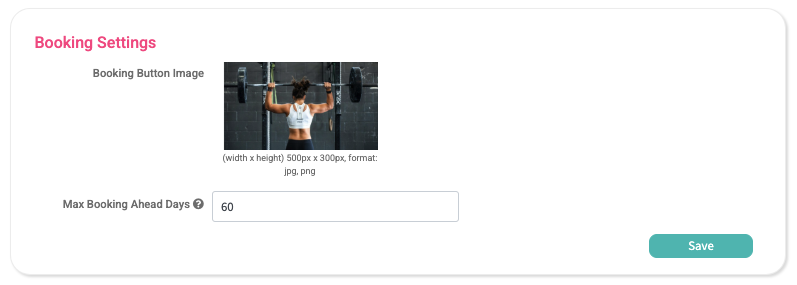
The Booking Button Image is the image shown on the home screen of your app to access your classes.
The ‘Max Booking Ahead Days’ is the total number of days into the future a client can book a class, we would always recommend keeping this to no more than 60 days into the future for ease of management.
Location
You will need to add a location to your account for both payment processing, class management and reporting. If you are operating from a gym or studio location you can add either the name of the location or the town it is located in. If you are online, then you can add the location ‘online’.
Currency
Within the Location area you also have the option to set your local currency, this is the currency you with to be paid in.

Groups
You have the flexibility to establish multiple groups for the purpose of organising, managing, and interacting with your clients.
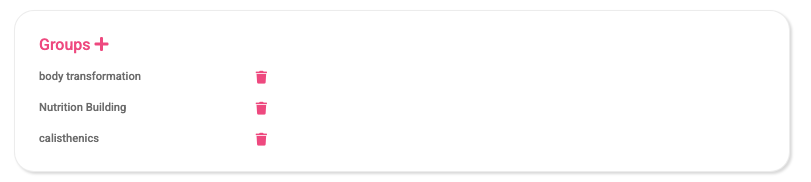
Groups prove to be an effective means of connecting with clients who share the same objectives. To set up a group, just click on the ‘plus‘ icon and provide a name for your group. Afterward, you can allocate clients to specific groups within their individual profile pages. Using groups you can assign documents, tasks, habits, workouts and programs to multiple clients in one go, as well as sending push notifications to all clients within the selected group/s.
New Client Incentive
If you are running classes you have the option to provide incentives to new clients.
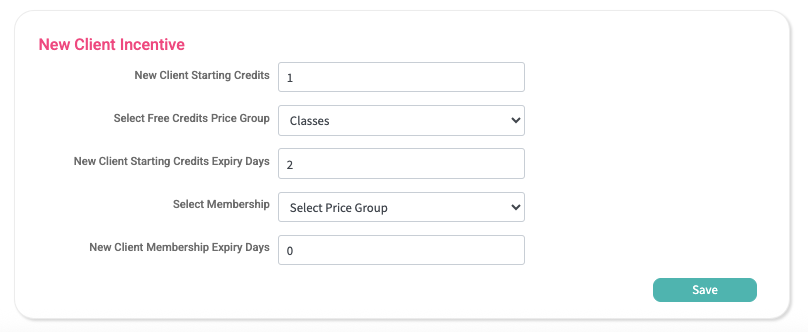
When creating your classes you must price your classes in credits, this allows you to set multiple pricing and use memberships to allow clients access to your classes. The New Client Incentive area allows you to automatically assign access to a set number or set type of class.
The amount you enter into the ‘New Starting Credits’ is the amount of credits that are automatically assigned to any new client, if set to ‘0’ no credits will be assigned.
The ‘Select Free Credits Price Group’ allows you to select the type of credit that is allocated, this allows you to restrict which classes are available to your clients, meaning that any class with the selected credit type is available and any with another type of credit are not available.
You can choose how many days the credit lasts. This is how long the client has to book a class.
For example, if you set it to 2, the client has 2 days to make a booking. After 2 days, the credit will be removed automatically if they haven’t booked.
This time limit is only for booking the class, not for when the class happens. So, a client can book a class that’s next week — they just need to book it within 2 days.
Memberships
If you are running memberships you can either create a bespoke membership for new clients, or you can select from one of your existing memberships. Any membership that is selected is assigned to new client for FREE, for the total number of days that you enter in the ‘New Client Membership Expiry Days’ area. If this is set to ‘0’ no memberships will be assigned.
