
Promo Codes
How to create discount codes for your memberships
Written by Lee Wilson
updated over a week ago
Promo codes allow you to run special offers and membership promotions via social media, print, online or via your App.
They’re a great way to attract new clients, reward loyal ones, or promote limited-time deals.

How to Use Promo Codes
To find your promo codes, go to the ‘Memberships’ tab. Then click on ‘Promo Codes’ at the top of the page.
Current Promo Codes
Any promo codes you’ve already created will show up at the top of the page. You can click ‘Edit’ next to any code if you want to make changes. If you want to delete a code, just click ‘Edit’ and then scroll to the bottom of the page. You’ll see a ‘Delete’ button there.
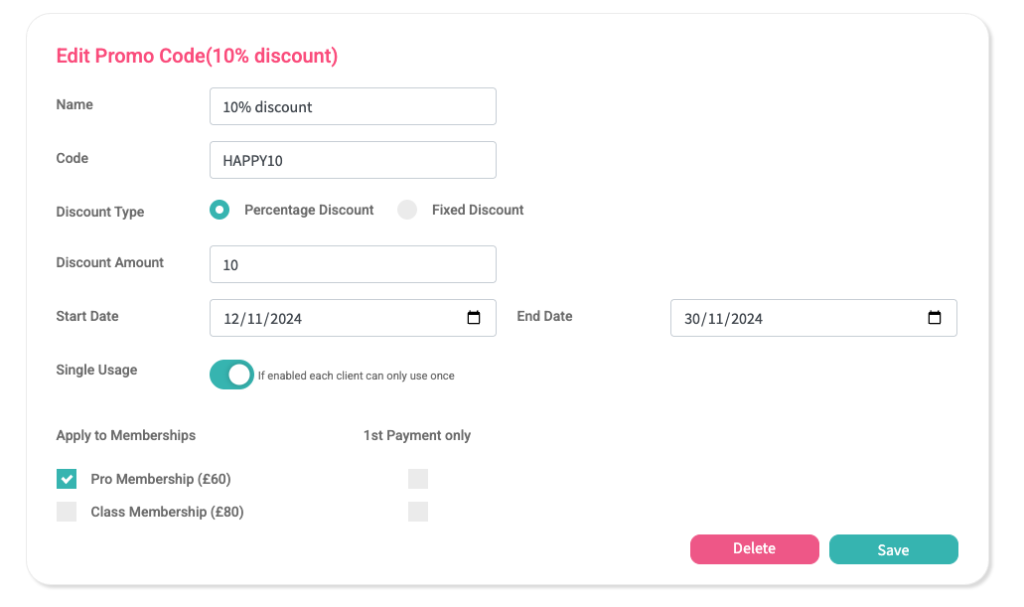
Adding a New Promo Code
If you’ve been editing a promo code and want to add a new one, click the plus (+) icon next to the ‘Current Promo Codes’ title.
To make a new promo code:
-
Name your code – This is just for you to remember it, like “10% off”.
-
Enter the actual code – This is what your customers will type in. Note: it’s case sensitive, so “HAPPY10” is different from “happy10”.
-
Choose a Discount Type:
-
Percentage Discount – Enter a number (like 10), and that percent will be taken off the price. For example, 10% off a $60 membership is $6 off.
-
Fixed Discount – Enter a number (like 10), and that exact amount will be taken off. So a $60 membership becomes $50.
-
-
Discount Amount – Type in how much you want to take off.
-
Start and End Dates – Set when the promo code starts and ends. It won’t work outside this time.
-
Single Use – Turn this on if you want each person to use the code only once.
-
Apply to Memberships – Choose which memberships this code can be used for.
-
1st Payment Only – Turn this on if you only want the discount to apply to the first payment. Leave it off if you want all future payments to be discounted too.
