
Creating Forms and Questionnaires
Create all the forms you need — from registrations and check-ins to questionnaires and PAR-Qs.
Written by Lee Wilson
updated over a week ago
Forms are a great way to engage with your clients and collect useful information. From check-in questionnaires to terms and conditions agreements, forms in UniqueFit are flexible and fully customizable to suit your workflow.
Forms and Questions Overview
The Forms section is split into two main areas:
-
Forms – Where you create and manage your forms.
-
Questions – Where you create and store individual questions that can be reused across multiple forms.
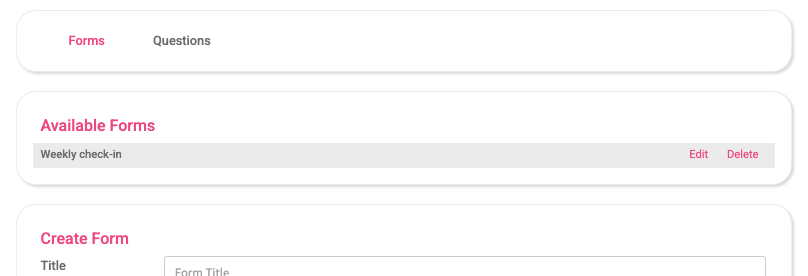
Creating Questions for your forms
To create a question:
-
Go to the Questions area.
-
Click Add Question.
-
Enter your question text in the Label box.
-
Choose the answer type:
-
Single line of text – Clients respond with a short text line.
-
Text box – Clients respond with a longer paragraph.
-
Yes/No – Clients choose between yes or no.
-
If Yes, show text box – Displays a text box if the client selects “Yes”.
-
Date – Clients select a specific date.
-
Whole number – For numerical answers.
-
Decimal – For decimal values.
-
Single choice – Clients pick one option from a list.
-
Multi-choice – Clients can select multiple options.
-
Address and Phone number – Collect contact information.
-
Once you select the answer type, you can further configure the options (e.g. list of choices with emojis).
✅ Tip: You can enable Push Notifications for specific answers. For example, if a client selects “Not great” on a wellness check-in, you’ll receive an instant push notification via the UniqueFit Coaching App.
If you already have a Form created you will have the option to assign the question to any of your forms. Note: When assigning a question you will need to edit the form to ensure your question is located where you want it to be located and to enable it.
Click Save to add the question to your Questions list. You can edit or delete any question later – updates automatically reflect in all forms using that question.
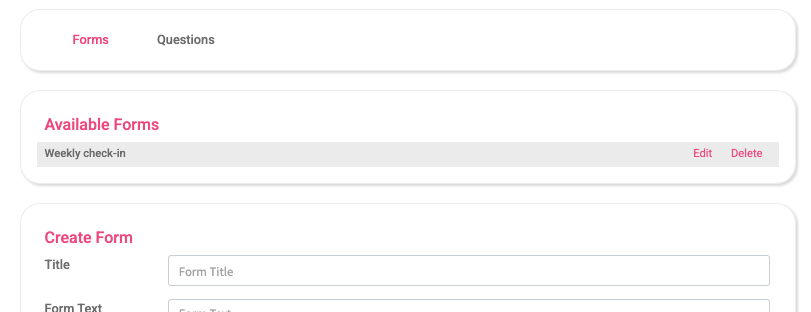
Creating a Form
To create a form:
-
Go to the Forms area and click Create Form.
-
Enter a name and optional introduction text (visible to clients in the app).
-
Add your questions from the question list.
-
Drag and drop to reorder questions.
You can also:
-
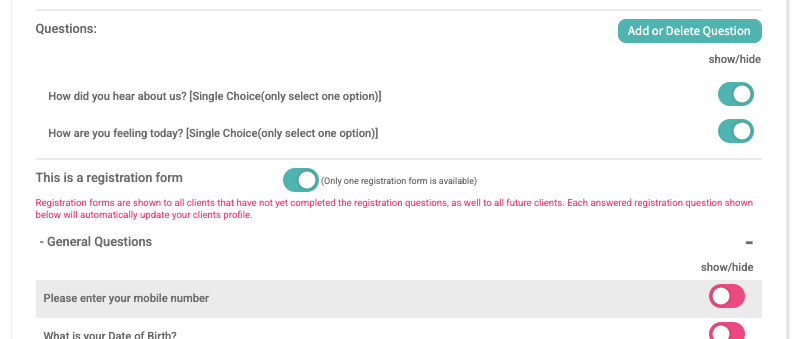
Hide a question without deleting using the toggle switches.
-
Enable Registration Questions – These special fields update client profiles and are used in registration forms. When you enable the “This is a registration form” switch, the form will automatically be shown to all clients who haven’t yet completed it, as well as to all new clients.
-
Add End Text – Display a custom message after form completion.
Form Visibility and Scheduling
You control when and how a form appears to your clients. Choose from:
-
Next login – Show the form the next time clients log in.
-
Specific dates – Choose a custom date range.
-
Assign via client schedule – Show a form to specific clients on selected dates. If selected you will need to assign the form via the individual clients schedule page – from their schedule page you can assign the form to the individual clients, a group of clients or all clients.
-
Recurring day – Automatically show the form weekly on a set day (e.g. every Monday).
In the Agreement Action area, you can require clients to agree before proceeding (ideal for terms and conditions) or simply show the form until it’s completed.
Managing Forms
Once saved, your form appears in the Forms List, where you can:
-
Edit – Make changes anytime.
-
Delete – Remove the form and all associated responses.
📝 Note: Deleting a form will also delete any responses previously submitted by clients.
Viewing Client Responses
Client responses are stored in their profile page and can be compared side-by-side, making it easy to track changes and follow up when needed.
