
Setting your holidays and cancelling classes
How to set your holidays, cancel your classes and send push notifications to class members
Written by Lee Wilson
updated over a week ago
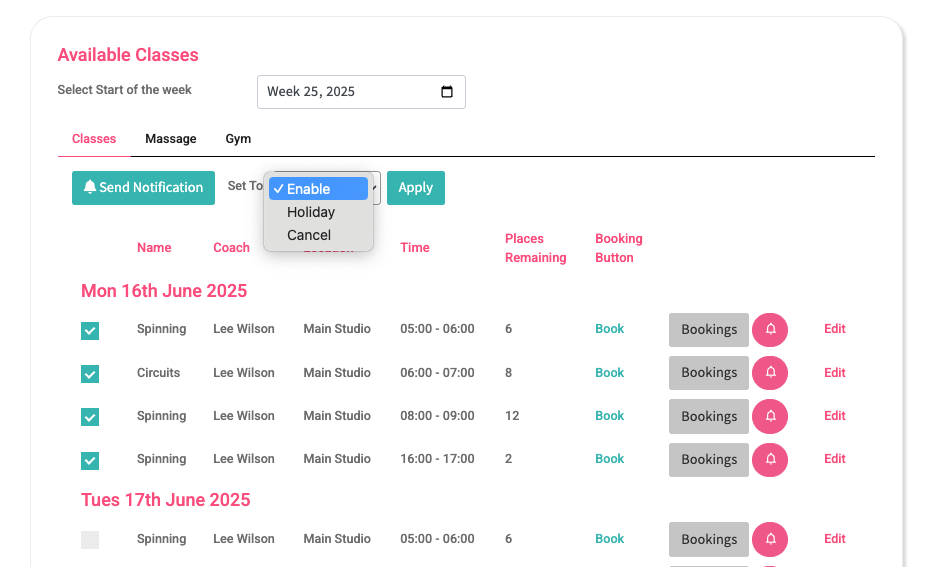
Setting Holidays
We all need a holiday every now and again 🏝️
To mark a class as a Holiday, go to the Class Manager page. In the Available Classes section, select the day of the week your class is scheduled—this will display all classes for that week.
Use the checkboxes to select the classes you want to mark as a holiday. Once you’ve made your selection, open the dropdown menu at the top of the section and choose Holiday.
Then click the Apply button to save your changes.
Note: Classes marked as ‘Holiday’ cannot be booked. Any clients who were already booked into these classes will be automatically refunded.
Changing a Class Back from Holiday
If you selected the wrong class or your holiday plans change, you can undo the holiday setting. Just select the affected classes, choose Enable from the dropdown menu, and click Apply to restore them.
Important: Clients who were previously booked into the class will not be automatically re-added. You may need to contact them or ask them to rebook manually.
Cancelling a Class
Sometimes, you may need to cancel one or two of your classes.
To cancel a class, go to the Class Manager page. In the Available Classes section, select the day of the week your class is scheduled—this will show all classes for that week.
Use the checkboxes to select the class(es) you want to cancel. Once you’ve made your selection, open the dropdown menu at the top of the section and choose Cancel.
Then click the Apply button to save your changes.
Note: Classes marked as Cancelled cannot be booked. Any clients who were already booked into these classes will be automatically refunded.
Re-enabling a Cancelled Class
If you selected the wrong class, or are now able to run it, you can undo the cancellation. Just select the affected classes, choose Enable from the dropdown menu, and click Apply to restore them.
Important: Clients who were previously booked into the class will not be automatically re-added. You’ll need to notify them so they can rebook.
Notifying Clients
To let clients know the class is available again:
-
Go to the Engage page and send a Broadcast message. This will send a push notification to all your clients.
-
If the class was for a specific group, you can message just that group:
-
Go to the Clients page.
-
Select a client from the group you want to message.
-
Scroll to the bottom of their Profile page.
-
Use the Send Message to Group option to contact everyone in that group.
-
