
Assigning and Managing Habits for Clients
You can provide habit-based coaching to your clients by using the Habits feature.
Written by Lee Wilson
updated over a week ago
Viewing and Assigning Habits
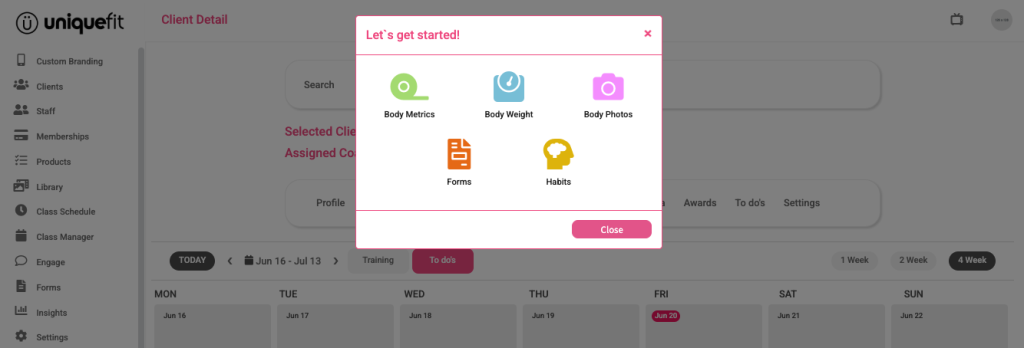
To get started, select the Habits icon.
You’ll see a list of all available habits—your custom habits will appear at the top, followed by pre-built habits.
To assign a habit:
-
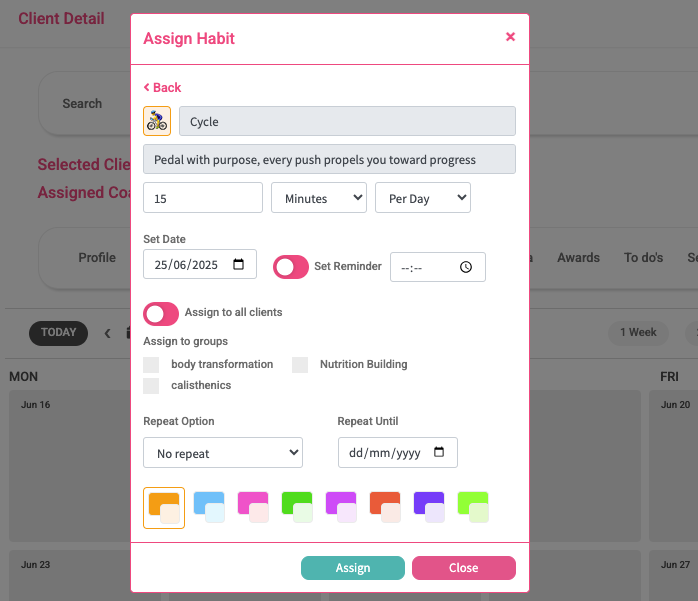
Click on the habit you want to assign.
-
Each habit has an icon and a title that will display on your client’s home screen.
-
By default, habits include preset parameters (e.g. duration or frequency).
You can:-
Keep the default settings
-
Or update them to suit your needs
-
If you update a pre-built habit, it will be saved as a custom habit, making it easier to reuse in the future.
Example
Assigning a cycling habit with default parameters will request your client to cycle for 15 minutes per day.
Client Experience
When a habit is assigned, your client can log their actual minutes for that day.
If they don’t meet the target (e.g. 15 minutes), the habit remains active on their home screen, allowing them to add more time later.
Once they reach or exceed the target—or the day ends—the habit will disappear from the home screen.
Clients can track their progress by:
-
Tapping the habit
-
Selecting Insights to view performance over time
Set Dates and Clients
You can assign habits to specific dates.
By default, the date selected from the schedule will apply—but you can update this.
Additional options include:
-
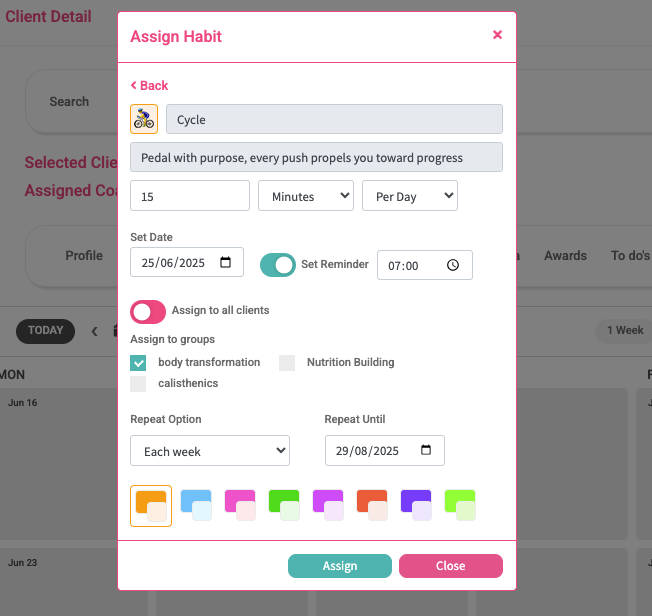
Send push notification to notify the client that a habit has been assigned to them
-
Assign to all clients if enabled this assigns the selected habit to all of your clients
-
Assign to specific groups you can assign the selected habit to individual or multiple groups
-
Set a repeat schedule You can set the habit to repeat ever weekly, every 2 weeks, every 3 weeks, or every 4 weeks
Example
For example if you wanted to set the cycling habit to all of your Body Transformation clients until August 29, you would simply select the cycling habit, make any alterations to the duration that you’d like. Set the start date and set a Push Notification to alert your clients of the assigned habit. You would then tick the Body Transformation box within the groups section and set the repeat option to each week, meaning that the habit will automatically be assigned to the same clients each week. We would then set the ‘Repeat Until’ date to August 29.
Ending or Deleting Habits
To stop or remove habits:
-
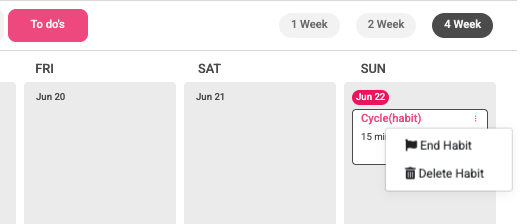
Click the three dots next to the habit
-
Select one of the following:
-
End Habit – Removes the habit from the selected date forward
-
Delete Habit – Removes all instances of the habit from your system
-
Creating Custom Habits
If the habit you want doesn’t exist, you can create your own.
-
Click on Create Custom Habit
-
Choose an icon (you can also search icons at the top of the selection window)
-
Add a title and an a motivational quote
-
Set your target values
-
Choose a background color
-
Save the habit
Once created, you can assign it like any other habit.
Letting Clients Log Their Own Activities
You can give clients the ability to log their own activities without assigning habits.
This can be enabled in:
-
Global Settings
-
Membership Settings
-
Individual Client Settings
Once enabled, your clients can manually add and track activities anytime through their app.
Viewing Client Progress
To view a client’s habit and activity data:
-
Go to your client’s profile
-
Select the Progress Data tab
Here, you’ll find:
-
Body Metrics
-
Habits
-
Exercise Metrics
-
Progress Photos
