
Progress Photos
seeing is believing
Written by Lee Wilson
updated over a week ago

To assign a To-Do, move your mouse over the date you want and click the green plus icon in the top right corner of that day.
This will open a pop-up window where you can choose what kind of To-Do to assign. You can:
-
Request a Body Metric
-
Ask for the client’s Body Weight
-
Request Progress Photos
-
Assign a Form
-
Assign a Habit
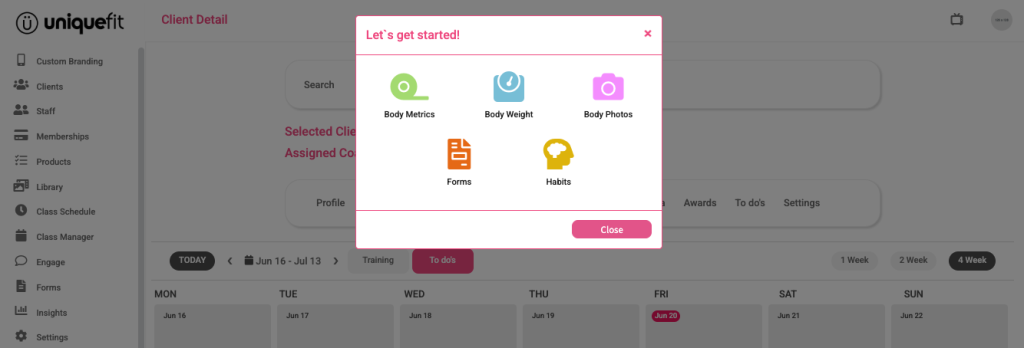
From your selected clients ‘Schedule’ tab
To schedule a task for your clients to submit their latest Progress Photo…
In the Progress Photo area give your task a name, for example, ‘Smile! Progress Photo time’, you can add a private note to your task, which is not shown to your clients.
Then, choose the date you want the task to appear. When it’s live, the task will show at the top of the home screen in your client’s UniqueFit app.
You can also turn on a Push Notification to remind your clients about the task.
Next, decide who should get the task:
-
To send it to all clients, turn on the “Assign to all clients” switch (it will turn green).
-
Or, choose one or more groups you’ve created.
When you’re done, click Save to add the task to the Scheduled area.
Once a client completes the task, it will disappear from their app.
You can also delete any task from the Scheduled area, which removes it from the client’s app.
