Bookings
How to see who is booked onto your classes and how to manually book clients into a class
Written by Lee Wilson
updated over a week ago
You can view clients that are booked onto your classes, are on your waiting lists or who have cancelled their class
Viewing Class Bookings
You can view clients who are booked onto your classes, on the waiting list, or who have cancelled their booking.
How to View Bookings
-
Go to the Class Manager page.
-
In the Available Classes section, select the week you’d like to view. The current week is selected by default.
-
Click the Booking button next to the class you want to view.
Note: Booking buttons for past classes are shown in grey.
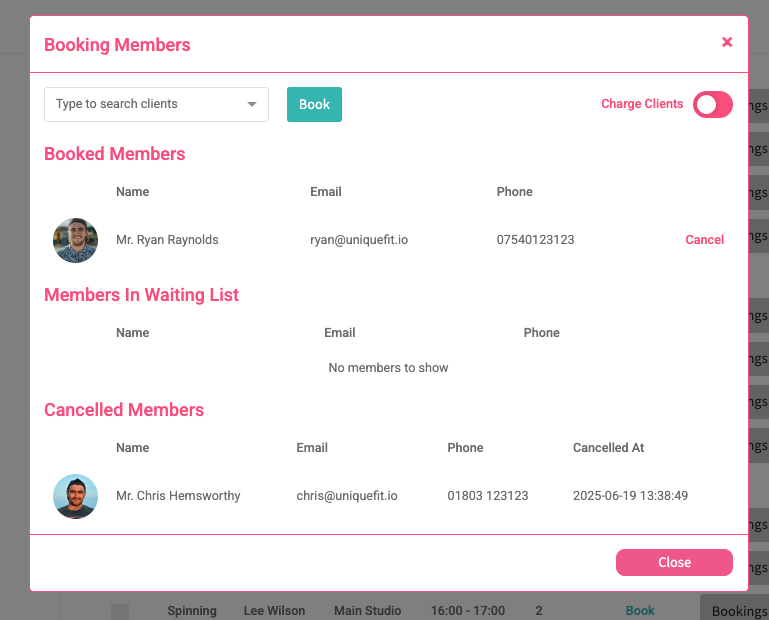
Clicking the Booking button opens a popup window with three sections:
Booking Popup Features
-
Manual Booking
At the top of the popup, you can search for a client and click the Book button to add them to the class.
By default, the Charge Clients toggle is turned off, so clients booked manually will not be charged.
To charge clients (i.e. deduct credits or use one of their membership sessions), switch the toggle on—the button will turn green.
Booking Sections
-
Booked Members
Shows all clients currently booked into the class. To cancel a booking, click the Cancel link next to the client’s name. -
Waiting List
Shows all clients currently on the waiting list for the class. -
Cancelled Members
Displays clients who had booked but later cancelled their spot.