
Editing individual and multiple classes
How to make changes to single and multiple classes quickly and easily
Written by Lee Wilson
updated over a week ago
You can modify individual or multiple classes using either the Class Manager or the Class Schedule page
—but what’s the difference?
Altering a single instance of a class allows you to select a specific class on a specific date and change only that class, for example if you’re running a class on Monday, November the 3rd at 8am, you would use the Class Manager page to update the individual class for that date/time. You can also cancel individual classes, set a class as a ‘Holiday’, manage the selected classes ‘Bookings’ and send push notifications to anyone booked onto the selected class.
If however, you wish to update a class that you are delivering throughout the week and you want all instances of that class updated, you would do this in the Class Schedule page. An example of this would be if you were running a Spinning class on Monday, Wednesday and Friday and you wanted to change the start and end time of all of these classes in one go. You can also Show/Hide and delete classes from the Class Schedule page.
Updating an individual Class
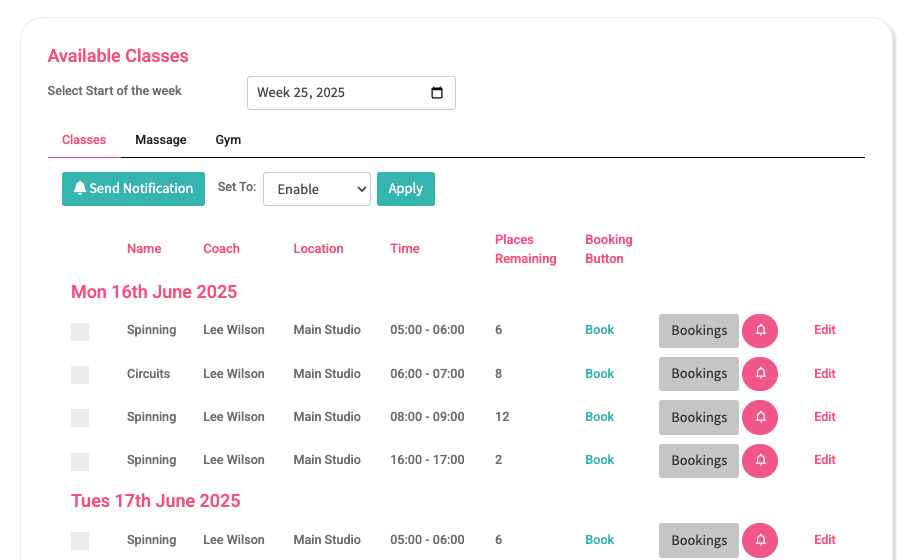
To update a single class, go to the Class Manager page, the Available Classes section will list all of the classes that you have created.
At the top of the page, you can select the start date of the week when your class is scheduled. Below this, you’ll see your individual calendars, allowing you to switch between them for the selected date.
To edit a class’s details, click the corresponding Edit link. A popup window will appear, where you can update the following information for the selected class:
-
Minimum cancellation notice
-
Class location and category
-
Assigned coach
-
Start and end time
-
Total number of available places
-
Descriptive text (e.g., class notes or instructions)
Updating a group of Class
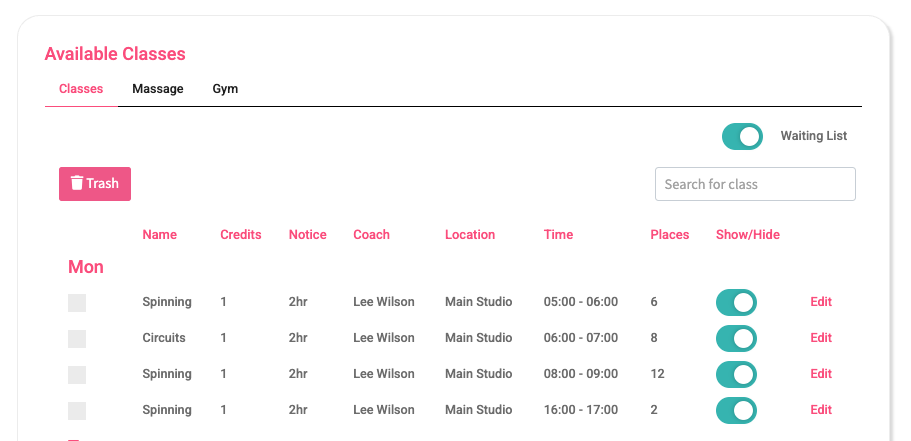
To update a group of classes, go to the Class Schedule page and scroll down to the Available Classes section.
At the top of this section, you will see a list of calendars. These calendars help you manage different class groups connected to each calendar.
Waiting List
Below the calendars, you can enable or disable the Waiting List feature.
When the waiting list is enabled, and a class is fully booked, the Book button in your app will change to Join Waiting List.
This lets clients add themselves to the waiting list for that class. If a spot becomes available, everyone on the waiting list will get a message (via push notification) letting them know they can book the class.
Removing Classes from the Schedule
Below the Waiting List section, you have the option to delete classes you no longer need.
To do this, check the box next to the class name. When you check it, all other classes with the same name and time will also be selected automatically.
For example, if you check the Spinning class on Monday at 5 AM, then all Spinning classes at 5 AM for the rest of the week will also be selected.
Click the Trash button to delete these classes. Be careful—this action cannot be undone.
Deleting Only Some Classes
If you don’t want to delete all classes in the group, click the Edit link instead.
For example, if your group includes classes on Monday, Tuesday, and Wednesday at 5 AM, but you only want to remove the Tuesday class, click Edit. This lets you choose which days to remove without deleting the whole group.
Editing Groups of Classes
To edit a group of classes, simply click the Edit link next to one of the classes.
Using our earlier example of a Spinning class running on Monday, Tuesday, and Wednesday at 5:00 AM—you only need to click Edit for one of those classes. Any changes you make will automatically apply to the other two classes as well.
Show/Hide Classes
If you want to hide a class from your booking calendar without deleting it, just switch off the Show/Hide toggle switch.
To make the class visible again, switch it back on.
