Calendars, Categories and Locations
Setting up your calendars, categories and locations for your classes
Written by Lee Wilson
updated over a week ago
Within the uniquefit booking system, you can create as many calendars, categories, and locations as you need to organize your sessions. To create your calendars, categories, and locations simply navigate to the ‘Class Schedule’ page and select the required tab.
Calendars
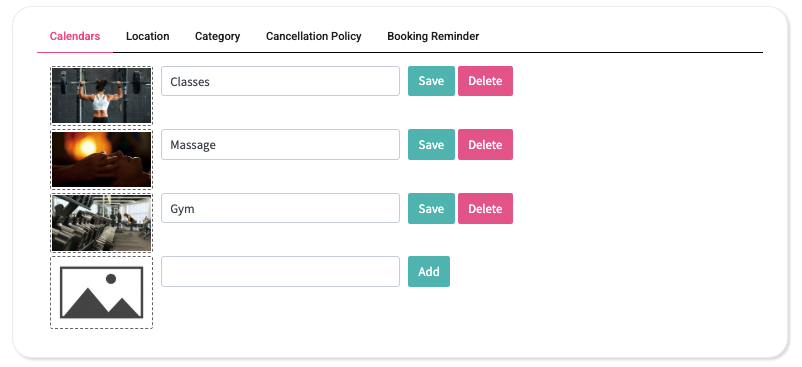
Calendars are where your sessions—such as classes, appointments, or gym access—are grouped and displayed in the UniQueFit client app or your custom-branded app. Creating multiple calendars helps clients easily find and book the sessions they’re looking for.
For example:
-
A calendar for all your classes
-
A calendar for massage appointments
-
A calendar for gym access
How to Create a Calendar
-
Upload a background image – This will be displayed on the calendar button in the client app.
-
Enter the calendar name – Choose a clear and descriptive name for easy client navigation.
-
Save the calendar.
-
Repeat the steps to create additional calendars as needed.
Categories
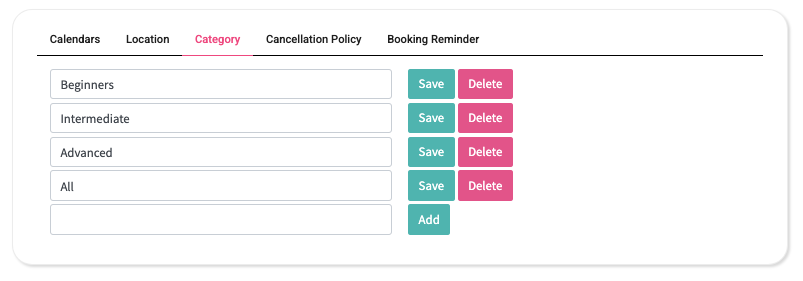
Similar to Calendars, you can create as many Categories as needed. Categories help clients quickly identify whether a class is suitable for them.
For example, you might create categories like:
-
Beginners
-
Intermediate
-
Advanced
-
All Levels
Assigning a category to each class provides clients with a clearer understanding of which sessions best match their experience level or preferences.
How to Create a Category
-
Navigate to the ‘Class Schedule’ page.
-
Click on the ‘Category’ tab.
-
Enter a name for your category.
-
Click ‘Save’.
-
Repeat the process to add more categories.
Locations
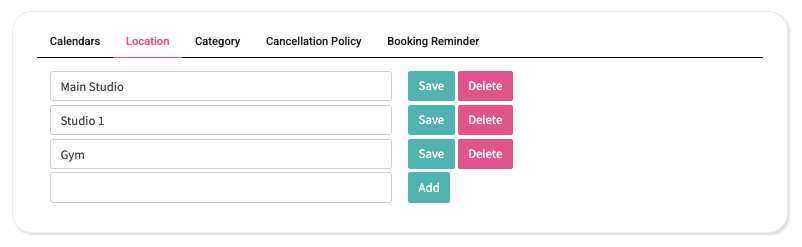
Similar to Calendars and Categories, you can create as many Locations as needed. Locations allow you to assign sessions (classes, appointments, etc.) to different physical areas within your business.
For example:
-
A yoga class might be held in Studio 1
-
A spin class in the Main Studio
-
A self check-in access session for your gym could be assigned to the Gym location
Assigning a Location to each session gives clients a clear understanding of where the session will take place.
How to Create a Location
-
Navigate to the ‘Class Schedule’ page.
-
Click on the ‘Location’ tab.
-
Enter the name of your location.
-
Click ‘Save’.
-
Repeat the process to add more locations.